Turn Multithreaded Rendering on. If the CPU has four cores or fewer, test it off as well.
Home · Games · Valorant
Best Valorant Settings for FPS on PC
The best Valorant settings for FPS keep material, texture, detail, and UI quality on Low, VSync off, and the game in fullscreen. These Valorant pro settings turn multithreaded rendering on for most PCs, anti-aliasing off, and NVIDIA Reflex to On + Boost, or AMD Anti-Lag 2 on an AMD GPU. No player is named.
Boost my performanceSettings on this page come from one Valorant FPS video, checked 20 October 2026. Watch the video. FPS cap numbers that appeared only on screen are left out.
Quick wins
Five Valorant FPS changes to make first
Set Material, Texture, Detail, and UI Quality to Low.
Turn VSync off. Cap FPS with Limit FPS, or use G-Sync or FreeSync if the monitor has it.
Use fullscreen, and set anti-aliasing to None.
NVIDIA GPU: set Reflex Low Latency to On + Boost. AMD GPU: turn AMD Anti-Lag 2 on instead.
Video settings
Best Valorant video settings
Path: Settings > Video. The value is what the video states. Bloom is the one setting it leaves open. Anisotropic Filtering is 8x at a minimum, and 16x on a PC that can hold it.
| Setting | Value | Why |
|---|---|---|
| Multithreaded Rendering | On | The video says this lets the CPU cores work on Valorant, which raises FPS and lowers latency. With four cores or fewer, test on and off. |
| Material Quality | Low | The video sets Material, Texture, Detail, and UI Quality to Low. It says high on these can block abilities such as Viper's wall and orb, so Low is an advantage. |
| Texture Quality | Low | Same group as Material Quality. |
| Detail Quality | Low | Same group as Material Quality. |
| UI Quality | Low | Same group as Material Quality. |
| Vignette | Off | Darkens the edges of the screen and costs FPS. |
| VSync | Off | Caps the frame rate and adds input latency. The video points here if the game feels rough. |
| Limit FPS | Cap in game from the monitor's refresh rate | The video uses this instead of VSync for lower input latency and steadier frame timing. If the monitor supports it, also turn on NVIDIA G-Sync or AMD FreeSync. The exact cap numbers were on screen only. |
| Anti-Aliasing | None | Best performance, in the video's words. |
| Anisotropic Filtering | 8x minimum, 16x if the PC can handle it | The video says the FPS change from 1x to 8x is small, and that 16x can hurt FPS. The video uses 16x. |
| Improve Clarity | Off | The video turns this off with Experimental Sharpening, Distortion, and Cast Shadows. |
| Experimental Sharpening | Off | Turned off with Improve Clarity. |
| Distortion | Off | Turned off with Improve Clarity. |
| Cast Shadows | Off | Turned off with Improve Clarity. |
| Bloom | Your choice | The video shows Bloom off and on inside Viper's wall. It says this can make enemies pop more, at some FPS cost, and leaves the choice open. |
| NVIDIA Reflex Low Latency | On + Boost | For an NVIDIA GPU. The video says this reduces latency. |
| AMD Anti-Lag 2 | On | For an AMD GPU, instead of Reflex. The video says Riot added support for it. |
| Display mode | Fullscreen | The video uses fullscreen for the lowest latency and the highest FPS. Windowed fullscreen is there if you want the convenience. The video calls that a smaller tradeoff. |
| Resolution | Native, or lower if you are short on frames | A lower resolution, or a custom one, gives the PC fewer pixels to draw. The video prefers the monitor's native resolution. |
Turn on NVIDIA G-Sync or AMD FreeSync when the monitor supports it, and cap FPS in game from that refresh rate. The video says this beats VSync on input latency and frame timing.
Settings by PC
Valorant settings by PC
The video does not split settings by graphics-card tier. It changes a few options when the CPU is small or the PC is short on frames.
| PC | What to change | Why |
|---|---|---|
| Four CPU cores or fewer | Test Multithreaded Rendering on and off | The video leaves it on for other PCs |
| Most PCs | Multithreaded Rendering on | Uses the CPU's cores and threads |
| PC short on frames | Anisotropic Filtering 8x, and a lower or custom resolution | 16x can hurt FPS. Fewer pixels raise FPS |
| PC that keeps up | Anisotropic Filtering 16x, native resolution | The video plays at 16x and at native resolution |
| NVIDIA GPU | Reflex Low Latency: On + Boost | Cuts latency |
| AMD GPU | AMD Anti-Lag 2 on | The video uses this instead of Reflex |
Windows and NVIDIA
Windows and NVIDIA settings from the video
The video walks through Windows first, then the NVIDIA App. It calls the NVIDIA Control Panel the stronger option for performance, and says you can install that from the Microsoft Store if the new driver did not include it. The values below are the ones it shows in the App.
Each time you launch Valorant
- Open Valorant, then open Task Manager and the Details tab.
- Set VALORANT-Win64-Shipping and VALORANT.exe to High priority. The video says you do this every time you play, so Valorant stays at the top of the process list.
Startup apps and the system tray
- In Task Manager, open the Startup tab and disable startup apps you do not need when the PC turns on. The video leaves Vanguard enabled.
- Open the system-tray arrow and quit apps you are not using. You can do the same from Task Manager.
Graphics, power, and appearance
- Hardware-accelerated GPU scheduling: search for graphics settings and turn it on. The video says this raises FPS for most people because Valorant is CPU-heavy, and that you should test it on your PC.
- VALORANT.exe: on that same graphics page, choose Add desktop app. Go to the drive where the game is installed, then Riot Games, the VALORANT folder, the live folder, and VALORANT.exe. Set it to High performance so the game uses the dedicated GPU. The video calls this out for laptops.
- RiotClientServices.exe: Riot Games, then the Riot Client folder. Set this to High performance as well.
- Power plan: search for "choose a power plan" and select High performance, or Ultimate Performance if that plan is listed. The video says this raises average FPS by lifting 1% lows, with less latency.
- Visual effects: search for advanced system settings, open the Advanced tab, then Settings under Performance. Choose Adjust for best performance, and leave Smooth edges of screen fonts checked.
- Notifications: search for notifications and turn them off, unless you use the PC for work and email.
- Dark mode: right-click the desktop, then Personalize, then Colors, and turn dark mode on. The video calls the difference small.
- Animation and transparency: search for transparency effects and turn off animation effects and transparency effects. The video stresses this if you play with more than one monitor.
System files and disk cleanup
- Open Command Prompt as administrator and run these in order. The video uses them to repair corrupted system files:
DISM /Online /Cleanup-Image /CheckHealthDISM /Online /Cleanup-Image /ScanHealthDISM /Online /Cleanup-Image /RestoreHealth - Open Run, type
%temp%, select all, and delete. Skip files Windows will not remove. - Open Disk Cleanup and select the listed items. The video says the DirectX shader cache is the one to include, and suggests doing this every few months. It can take a while.
- Search for Defragment and Optimize Drives, then click Optimize. It can take a while.
NVIDIA App global settings
Graphics, then Global settings. The video also opens legacy settings for PhysX and texture filtering.
| Setting | Value | Why |
|---|---|---|
| CUDA - GPUs | Your primary graphics card | The video sets CUDA to the main GPU |
| OpenGL GDI compatibility | Prefer performance | The video says this gives the most FPS. The transcript label is used as spoken |
| Power management mode | Prefer maximum performance | The video says this keeps the GPU from dropping clocks, which cuts stutter and raises FPS |
| Shader cache | Unlimited | Keeps compiled shaders between launches |
| Automatic Shader Compilation | Off | The video leaves this off |
| PhysX | Primary GPU | Under Show legacy settings |
| Texture filtering - Anisotropic sample optimization | On | Under legacy settings |
| Texture filtering - Negative LOD bias | Allow | Under legacy settings |
| Texture filtering - Quality | High performance | The video sets Quality here for performance |
| Texture filtering - Trilinear optimization | On | Under legacy settings |
| Refresh rate | The monitor's highest | System, then the display. The video says many people leave a lower rate than the monitor allows |
| NVIDIA overlay | Off | The video says overlays add input latency and unstable FPS |
| NVIDIA notifications | Both off | Avoids pop-ups |
The transcript says "OpenGL GDI compatibility." That label was not matched to a confirmed NVIDIA menu name, so the row keeps the spoken words.
The video says you can instead turn on a Hypertune profile that applies these NVIDIA settings and keeps them current.
Hypertune
Let Hypertune do it
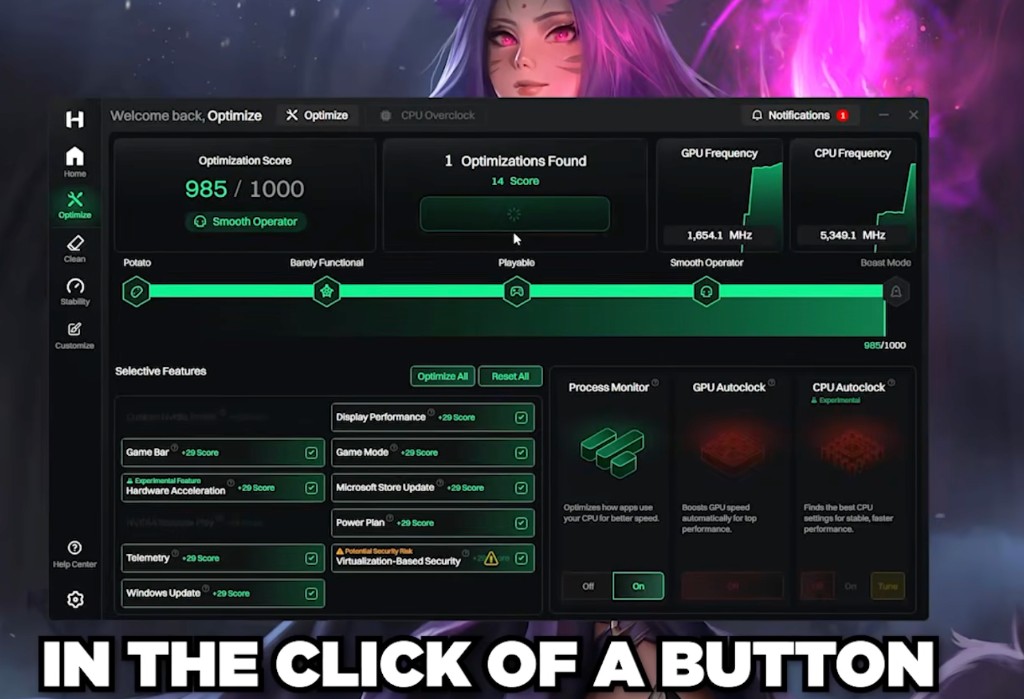
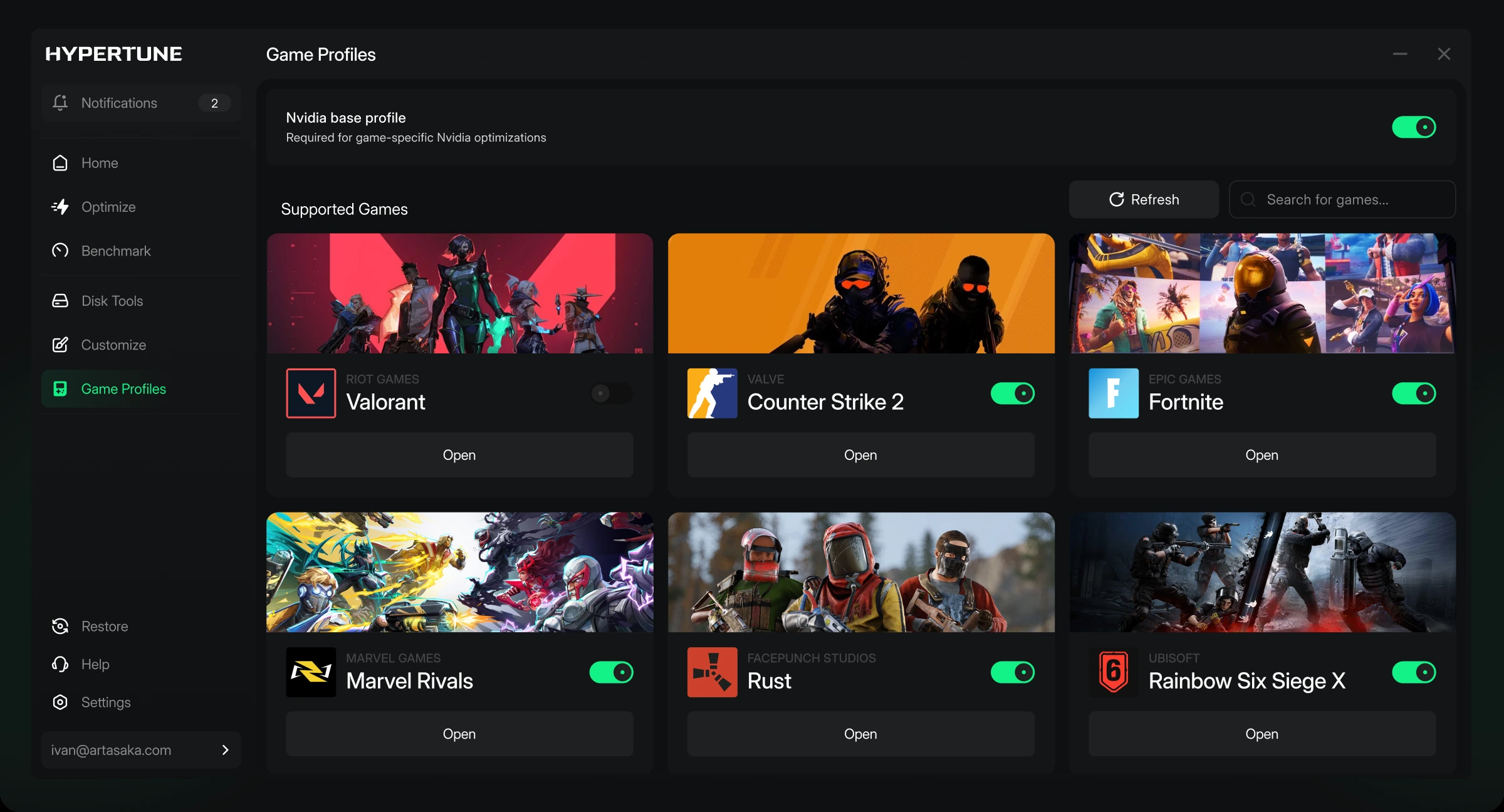
The settings above are free to copy. The video's pick for a CPU overclock is Hypertune, because it treats Valorant as a CPU-bound game. Hypertune also debloats Windows. Valorant is one of the Game Hub profiles, and the video says that profile makes additional tweaks on top of the settings here. Game Hub profiles can change files inside a game. Hypertune makes no unsafe changes.
Anti-cheat
Is Hypertune safe with Vanguard?
Valorant uses Vanguard. Game Hub profiles can change files inside a game. Hypertune makes no unsafe changes. Read the safety page.
Questions
Valorant pro settings FAQ
What are the best Valorant settings for FPS?
Low material, texture, detail, and UI quality. Vignette, VSync, Improve Clarity, Experimental Sharpening, Distortion, and Cast Shadows off. Anti-aliasing None. Fullscreen. Multithreaded Rendering on for most PCs. Anisotropic Filtering at 8x or 16x. Bloom is your choice. The list is the Valorant pro settings from the video.
What should change on a PC that is short on frames?
If the CPU has four cores or fewer, test Multithreaded Rendering on and off. Keep Anisotropic Filtering at 8x, and drop the resolution or use a custom resolution. The rest of the low graphics settings stay the same.
Should VSync be on in Valorant?
The video turns VSync off. It caps the frame rate and adds input latency. Use the in-game Limit FPS option, and turn on NVIDIA G-Sync or AMD FreeSync if the monitor supports it.
Fullscreen or windowed fullscreen?
Fullscreen. The video says that is the lowest latency and the highest FPS. Windowed fullscreen is a smaller tradeoff if you want to leave the game quickly.
NVIDIA Reflex or AMD Anti-Lag 2?
On an NVIDIA GPU, set NVIDIA Reflex Low Latency to On + Boost. On an AMD GPU, turn AMD Anti-Lag 2 on instead.
Should Bloom be on or off?
The video shows Bloom off and on inside Viper's wall. It says this can make enemies pop more, at some FPS cost, and leaves the choice open.
Do I set Valorant's priority to High every launch?
Yes. In Task Manager's Details tab, set VALORANT-Win64-Shipping and VALORANT.exe to High. The video says the change has to be made again each time you play.
Is Hypertune safe with Vanguard?
Valorant uses Vanguard. Game Hub profiles can change files inside a game. Hypertune makes no unsafe changes. Read the safety page.